Body
To change your Password Reset Tool Challenge Questions, use the tool's Update Profile section.
You'll need:
- Your 9-digit Stony Brook ID Number (the number on your Stony Brook ID card)
- 2 ways to authenticate: With your current NetID and NetID password, by answering questions, with an email address, by SMS (text message), or with DUO.
You may not see all five Authentication Methods.
Changing Your Challenge Questions
- In a web browser, go to mypasswords.stonybrook.edu
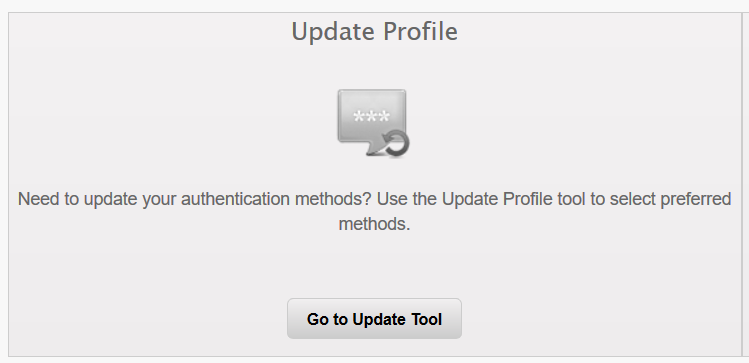
- Under Update Profile on the left, click Go To Update Tool
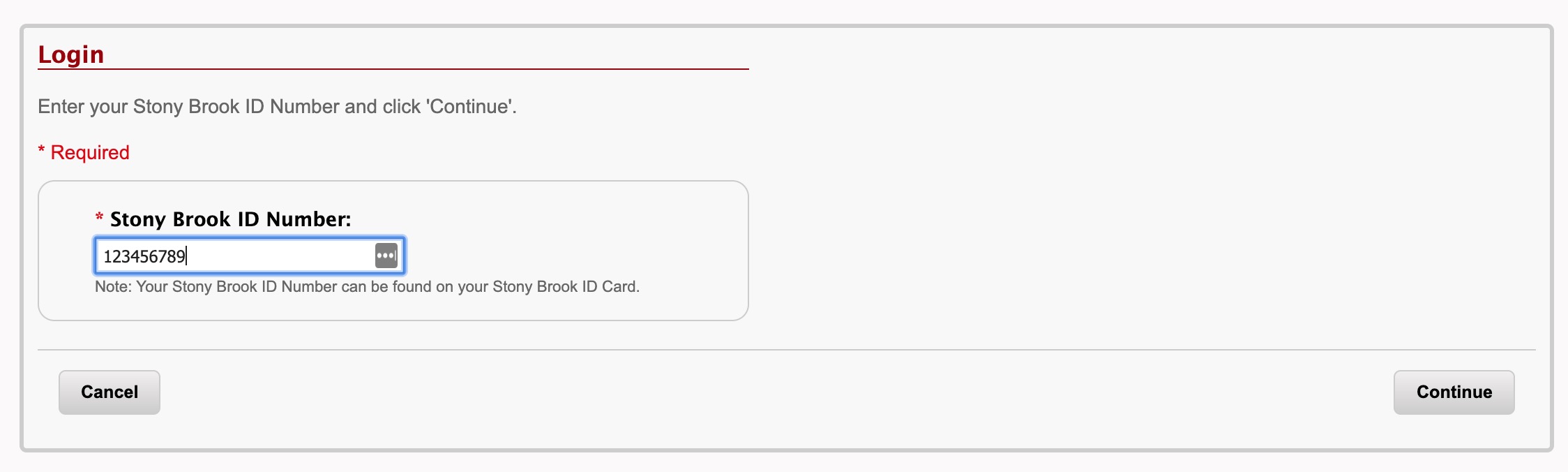
- In the Stony Brook ID Number box, enter your 9-digit Stony Brook ID Number (e.g., the number on your Stony Brook ID card, like 123456789) and click Continue
- Select 2 of the authentication methods to confirm your Stony Brook ID Number (i.e., to prove it is you and not someone else trying to change your password)
Start by checking one box and, if applicable, completing the steps to authenticate for that option.
Then check a 2nd box and authenticate for that option.
Start at the top of the list and work down until you've checked/completed 2 options:
- Authenticate yourself by using your existing NetID credentials
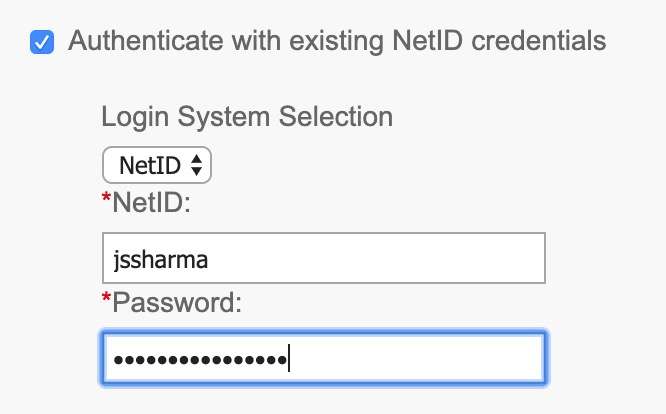
- If you know your current NetID and NetID password, check the box for Authenticate with existing NetID credentials
- For Login System Selection, choose NetID
- Enter your NetID and current NetID password
- Authenticate with Challenge Questions
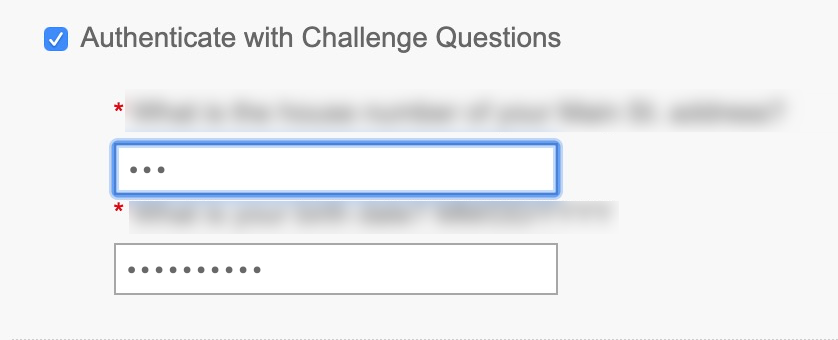
- Check the box for Authenticate with Challenge Questions and answer the questions
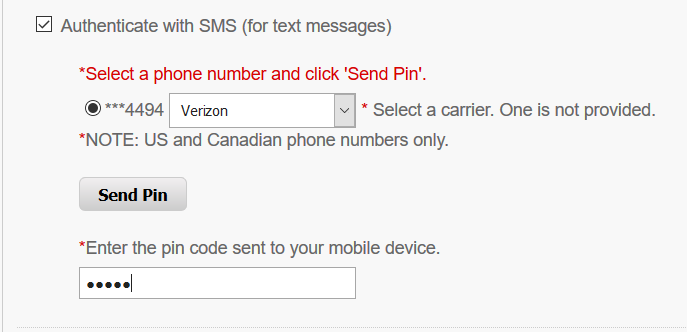
- Authenticate with SMS (for text messages)
- Check the box for Authenticate with SMS (for text messages)
- Select a phone number and from the drop-down which cell phone service provider it uses
- Click Send Pin
- Check text messages on that mobile device for the pin and then enter it in the box
- Authenticate with E-Mail
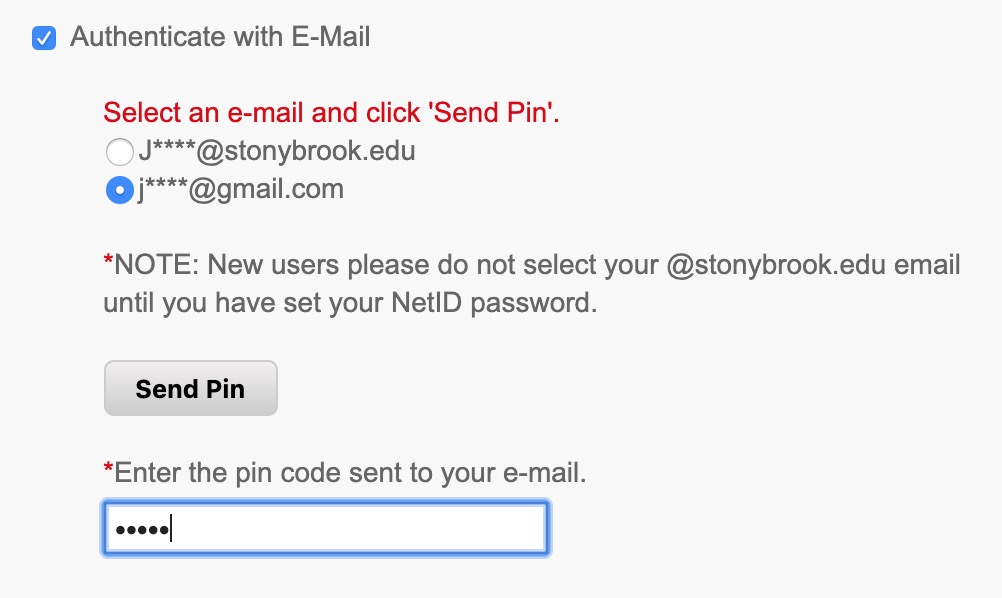
- Check Authenticate with E-Mail
- Click on an email address to select it
(if you are setting up your NetID password for the first time, do not select your @stonybrook.edu email address but instead another listed email like @gmail.com, @yahoo.com, etc.)
- Click Send Pin
- Check that email account for the email with the pin, then enter the pin in the Enter the pin code sent to your e-mail box
- Authenticate with DUO
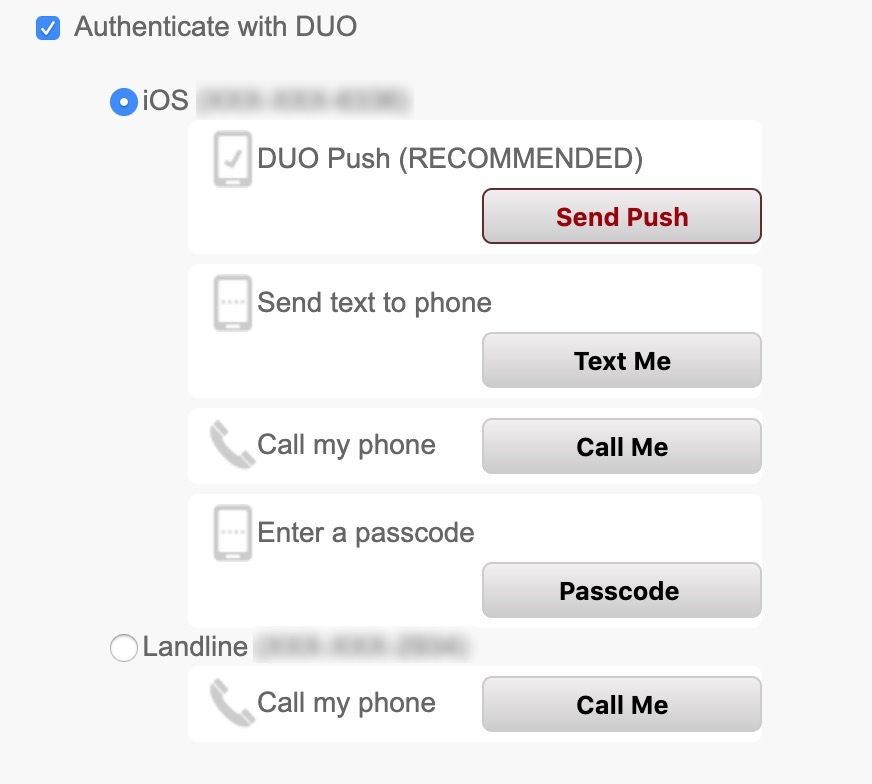
- Select a DUO method (e.g., iOS, Landline) and click a button next to one of the options under that type, e.g., Send Push, Text Me, Call Me, Passcode
If you get an error that you must select two authentication methods, before authenticating with DUO, authenticate with one option above first
- Complete the DUO authentication on the selected device
- Once you have checked and completed 2 authenticated methods click Continue on the right if necessary
(in some cases, if your 2nd authencation is with DUO for example, the next screen will display automatically)
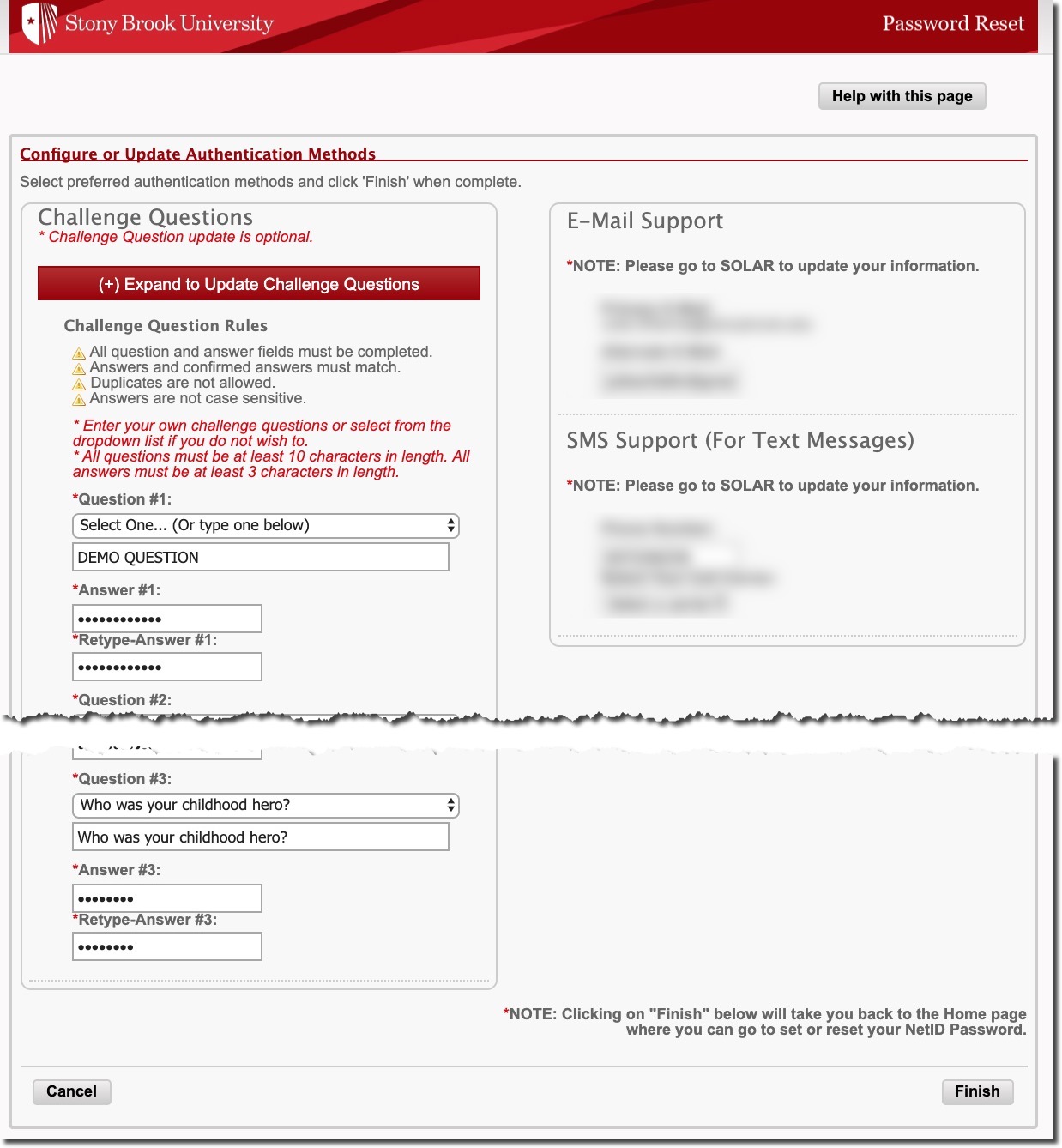
- On the Configure/Update Authentication Methods page that displays on the left, click + Expand To Update Challenge Questions
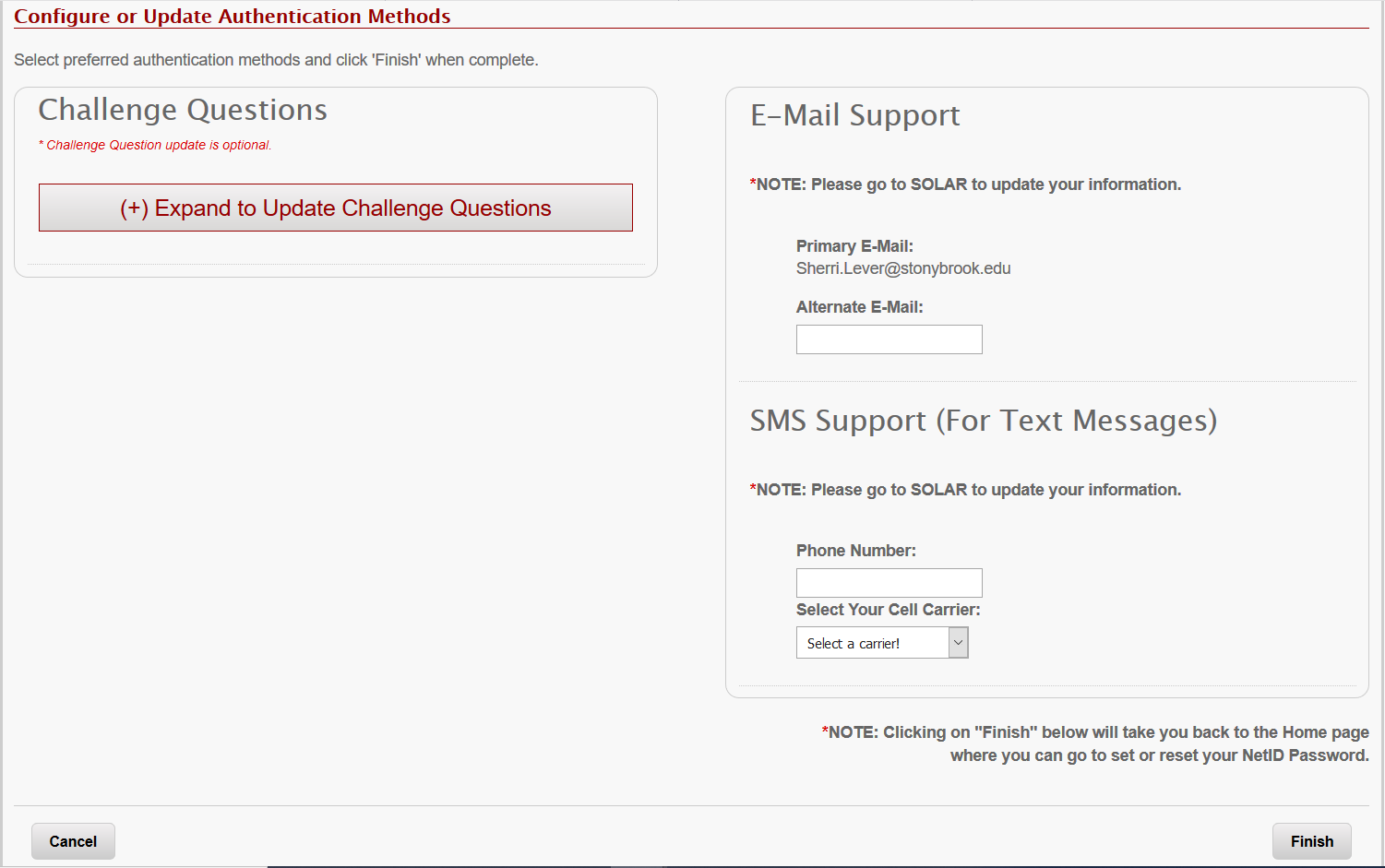
- Read the the Challege Question/Answer rules, and then for each of the 3 Challenge Questions
- Select a question from the drop-down box or enter your own question in the box below
- Type the answer and then re-type the answer (answers are not case sensitive)
- Once all challenge rules are followed and 3 questions/answers with confirmations are complete, on the bottom right click Finish.
- When completed, it will return you to the home page where you can update/reset NetID Password.